MCP Apps for Microsoft 365 Copilot Enterprise Leaders
MCP Apps: Bringing Interactive UI to Microsoft 365 Copilot

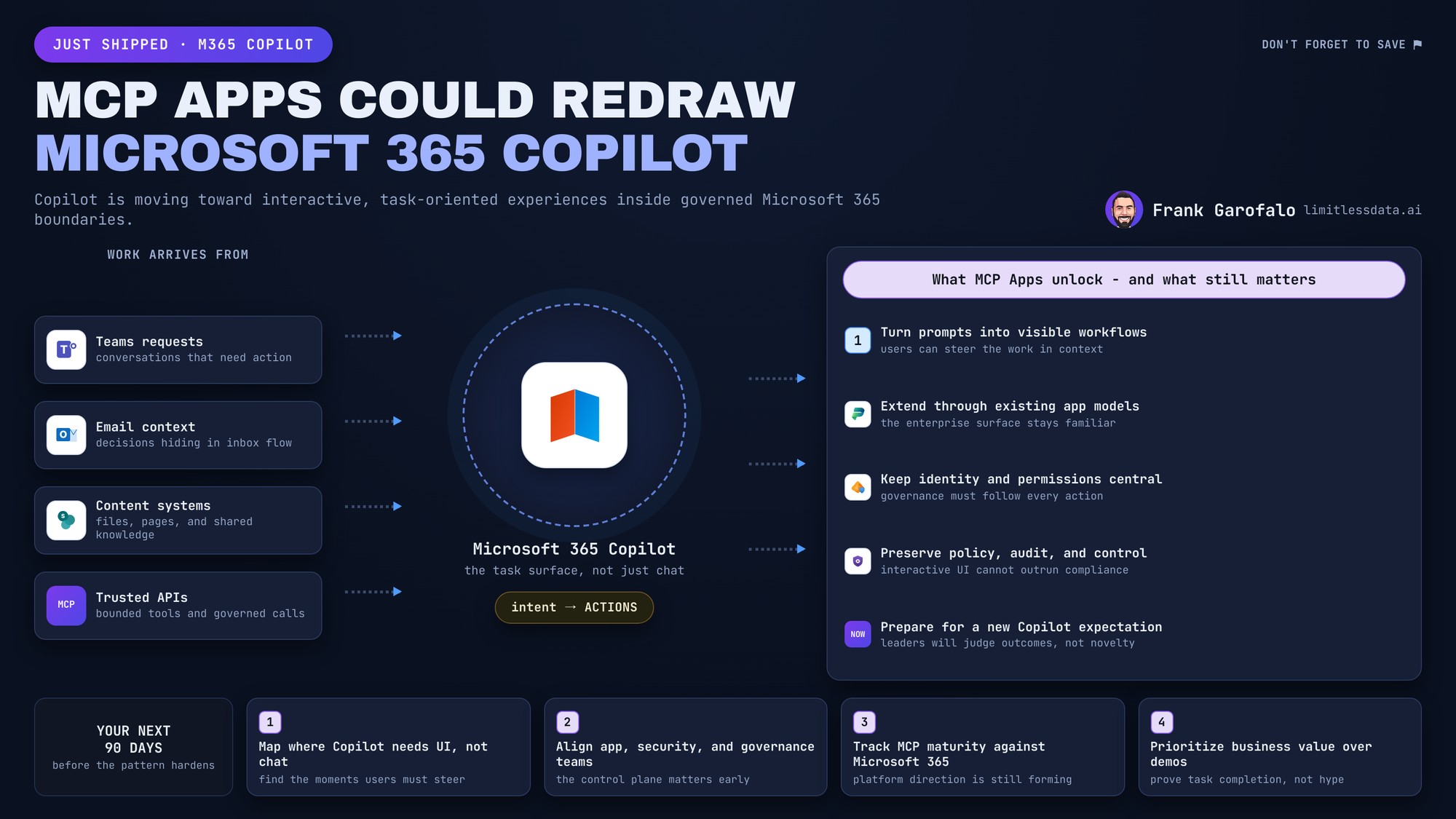
Copilot is great for summarizing, but clumsy for taking action.
That’s why interactive cards are a game-changer for workflows.
The real opportunity in Microsoft 365 Copilot isn’t just better answers. It’s combining conversation with a structured UI so users can review status, choose an action, provide missing input, and move work forward without leaving the flow.
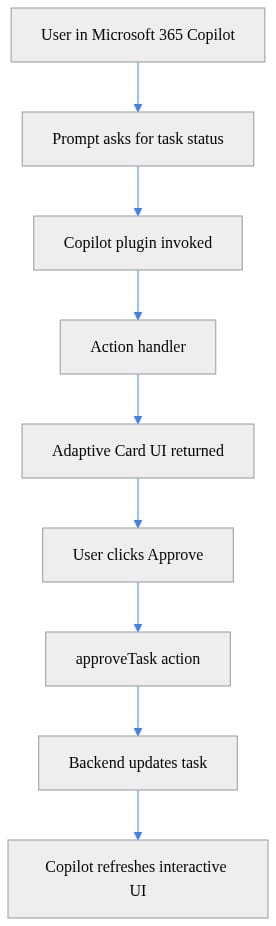
A practical pattern looks like this:
- user asks Copilot about a task
- a Copilot plugin or extension is invoked
- an Adaptive Card returns the relevant state and actions
- the user approves, updates, or confirms
- the backend system processes the action
- Copilot reflects the updated result
Where this fits:
- use Graph, connectors, and APIs for data access and actions
- use agents for goal-driven behavior
- use Copilot Studio where orchestration and managed experiences matter
- use interactive cards when the user needs to see state and make a deliberate decision
Before building your first interactive Copilot plugin, ask 4 questions:
- Who is allowed to expose tools and UI?
- Which identity actually executes the action?
- What data is allowed to be rendered in that surface?
- Where do logging, approval, and rollback live?
Leadership takeaway: the best Copilot experiences will move beyond chat into interactive workflows.
If you’re seeing users get stuck between “good answer” and “completed task,” this is the design pattern to watch.
Are you moving beyond chat to interactive workflows in Copilot? Share your biggest governance challenge below.
#Microsoft365Copilot #EnterpriseAI #DataGovernance
Try it yourself
Run this tutorial as a Jupyter notebook: Download runbook.ipynb (17 cells, 14 KB).